How to block the internet on your Mac for a set time
Last updated:
The quickest way is to turn off Wi-Fi, but it takes one click to undo. For a block that holds, you need something that turns off every connection and keeps it off until a timer ends, even if you quit apps or restart. This guide covers the built-in macOS options first, then how Vow does it.
The quick answer
- For a quick break: turn off Wi-Fi in Control Center. It's instant, and it's one click to undo.
- For a block that holds: use an app that takes your whole Mac offline on a timer and doesn't let you cancel on impulse. Vow does this for anywhere from 5 minutes to 24 hours, and quitting the app or restarting your Mac won't bring the internet back.
Built-in ways to turn off the internet on a Mac
macOS has no "go offline until 5 pm" switch, but you can get part of the way with what's already on your Mac.
1. Turn off Wi-Fi
Click the Wi-Fi icon in the menu bar or Control Center and switch it off, or go to System Settings › Wi-Fi. It's free and instant. The catch: it's one click to turn back on, there's no timer, and it only stops Wi-Fi. An Ethernet cable, a USB network adapter or an iPhone connected by USB can still get you online.
2. Use Terminal
If you're comfortable with the command line, networksetup -setairportpower en0 off turns Wi-Fi off, and the same command with on turns it back on. Wi-Fi is usually en0 on a Mac laptop; run networksetup -listallhardwareports to check yours. It has the same weakness as the Wi-Fi switch: one command undoes it, and nothing turns it back on for you.
3. Screen Time
Screen Time (System Settings › Screen Time) can limit apps with Downtime and App Limits, and its Content & Privacy settings can restrict websites. It was designed for parents managing a child's Mac. When you set the passcode yourself, you can switch it off in seconds, and it limits apps and sites by list rather than turning off the network.
4. Focus modes
Focus modes silence notifications, but your internet stays on. They're a good companion to a block, not a block.
5. Your router
Many routers can pause the internet on a schedule. That's hard to undo from your Mac, but it affects everyone at home, and an iPhone hotspot gets around it immediately.
Why most blocks don't hold
Block YouTube, and you open Netflix. Block WhatsApp, and you move to Telegram. Close Safari, and you open Chrome. Lists of blocked sites invite you to find the gap, and a block you can undo in one click is only as strong as your willpower in that moment.
A block that actually holds needs three things:
- It covers every connection: Wi-Fi, Ethernet, VPN connections, USB adapters and hotspots, for every app and browser.
- It can't be cancelled on impulse, but it still has a way out for a real emergency.
- It survives you quitting the app or restarting your Mac.
How to block the internet on a Mac with Vow
Vow is a Mac app built around those three rules. Here's a session from start to finish.
Step 1: Choose how long
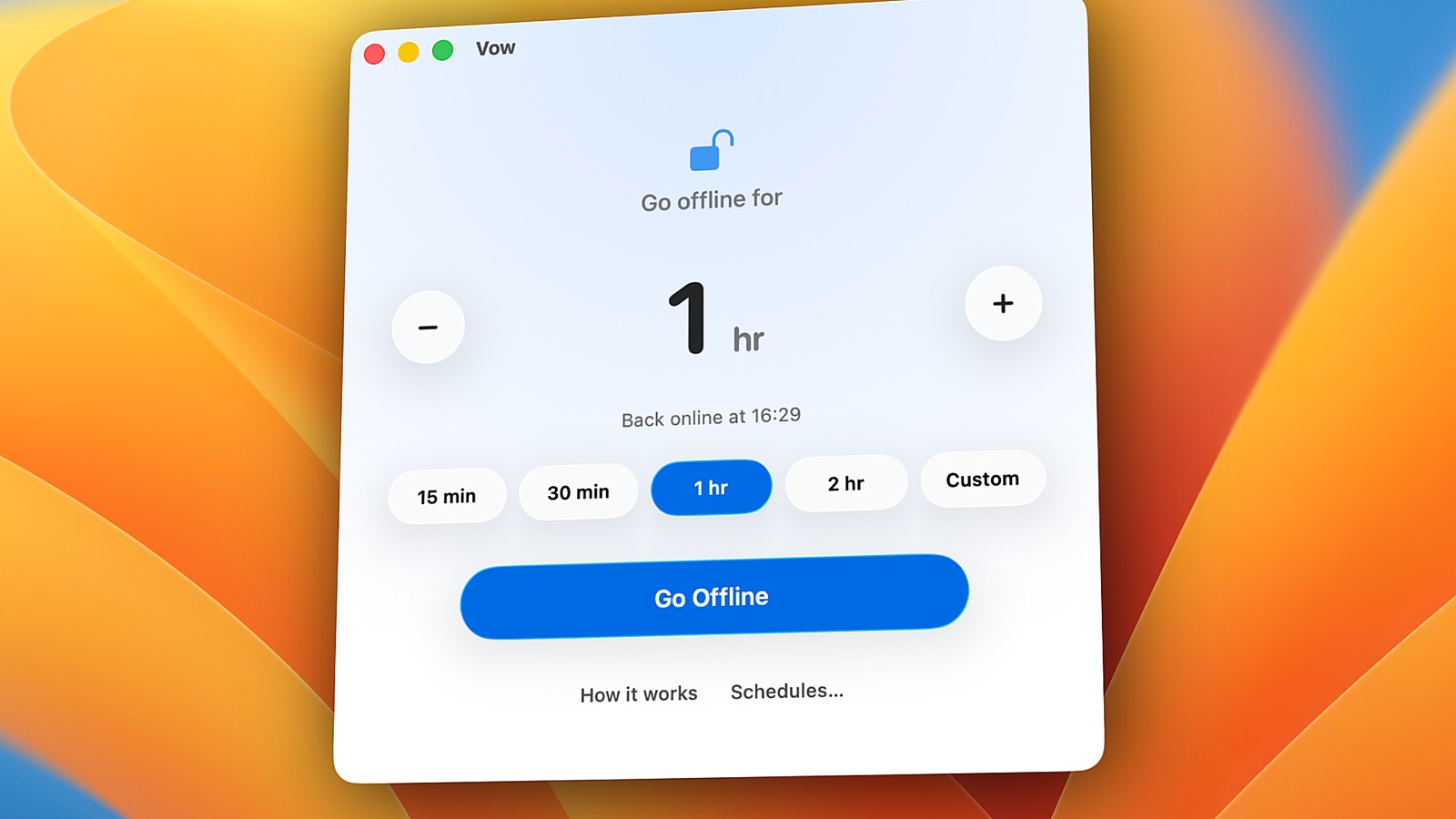
Pick a duration from 5 minutes to 24 hours. There are presets for 15 minutes, 30 minutes, 1 hour and 2 hours, or choose Custom. Vow shows exactly when you'll be back online.
Step 2: Confirm, and go offline
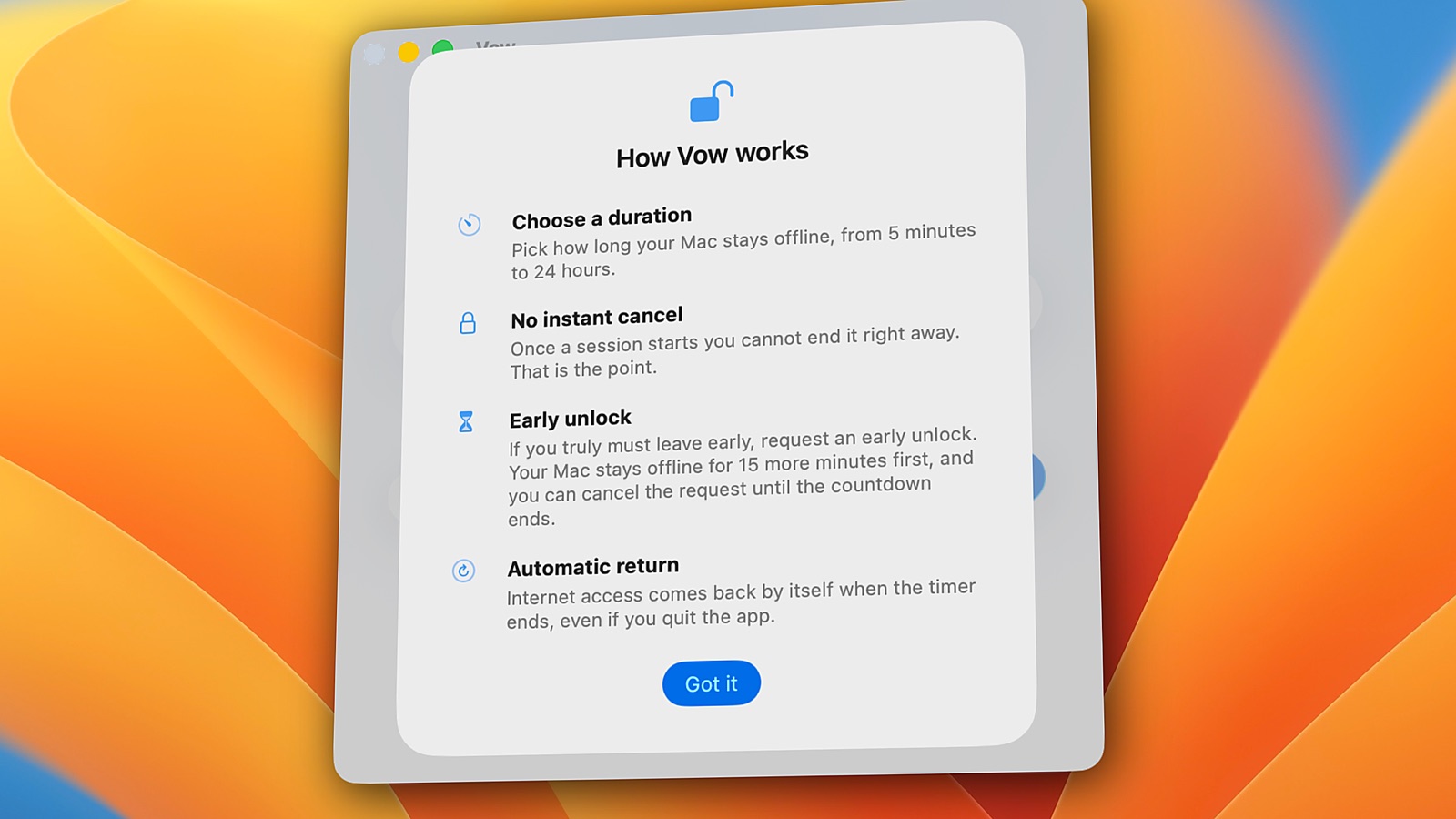
Press Go Offline. Vow explains the one rule before it starts: there's no instant cancel. Then it turns off every network connection on your Mac.
Step 3: Stay offline
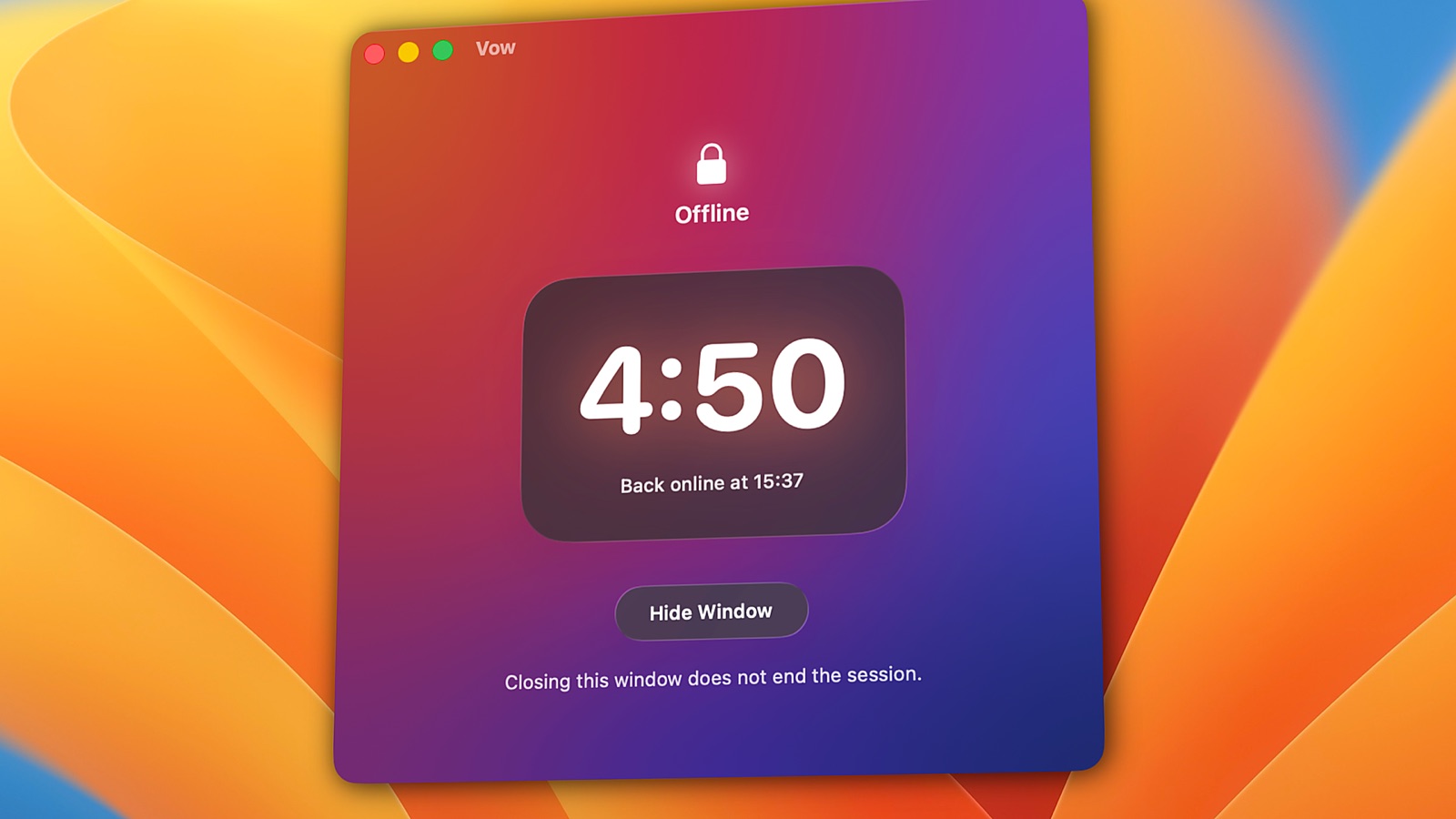
A countdown shows the time left. Closing the window doesn't end the session, and neither does quitting Vow or restarting your Mac. A small background helper keeps the timer running silently.
Step 4: Back online, automatically
When the timer ends, your internet comes back on its own, exactly as it was before.
If you really need to get online early
Life happens. You can request an early unlock, and your Mac stays offline for 15 more minutes first. You can cancel the request during those 15 minutes, which is usually all it takes for the urge to pass.
Schedule it
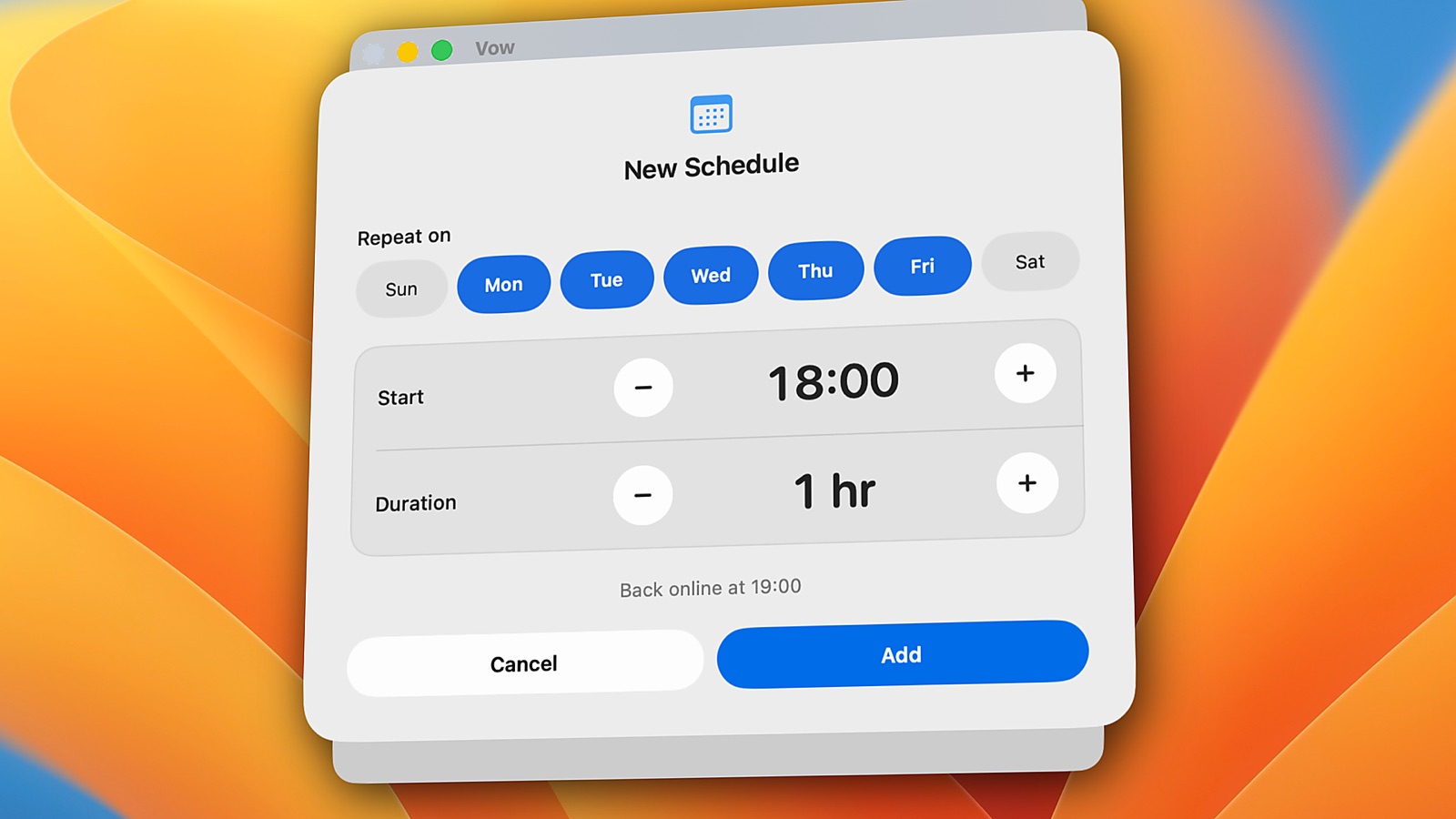
To go offline at the same time every day, add a schedule, such as Monday to Friday at 18:00 for 1 hour. If your Mac is asleep when a schedule starts and wakes within a minute, the full session runs. If it wakes later, Vow runs the remaining time, as long as at least 15 minutes are left.
What still works while you're offline
- Your files and apps. Write, design, read, code.
- Messaging apps stay open, so you can read old messages. Nothing new comes in.
- Local AI models and tools like Ollama.
- localhost and local dev servers. The loopback interface stays up, and local containers work through localhost ports.
- Bluetooth. AirPods, wireless mice and keyboards, and Apple Watch keep working.
Which option should you use?
| Method | Covers every connection | Timer | How easy to undo |
|---|---|---|---|
| Wi-Fi switch | No, Wi-Fi only | No | One click |
| Terminal | No, one interface per command | No | One command |
| Screen Time | No, limits apps and sites by list | Downtime schedules | Your own passcode |
| Router schedule | Everyone on your home network | Depends on the router | An iPhone hotspot gets around it |
| Vow | Yes: Wi-Fi, Ethernet, USB adapters, hotspots | 5 minutes to 24 hours, plus schedules | No instant cancel; early unlock after 15 minutes |
For a short break, the Wi-Fi switch is fine. For focused work, an evening off, or getting through a bad habit, you want something that holds when your willpower doesn't.
Questions
Can I turn off the internet on my Mac without turning off Bluetooth?
Yes. Wi-Fi and Bluetooth are separate, so turning off Wi-Fi leaves Bluetooth on. Vow also leaves Bluetooth alone, so your AirPods, mouse, keyboard and Apple Watch keep working during a session.
Does turning off Wi-Fi also block Ethernet or an iPhone hotspot?
No. Turning off Wi-Fi only stops Wi-Fi. A plugged-in Ethernet cable, a USB network adapter or an iPhone connected by USB can still get you online. Vow turns off all of them.
Can I schedule my Mac's internet to turn off at night?
macOS has no built-in way to turn off the network at a set time. Screen Time's Downtime limits apps, but it doesn't take your Mac offline. With Vow, you can add a schedule, such as every weekday at 21:00 for 2 hours, and the session starts on its own.
Will localhost and local AI models still work while I'm offline?
Yes, with Vow. The loopback interface stays up, so localhost, local dev servers, local containers via localhost ports, and local AI models such as Ollama keep working.
Can I bypass the block with a VPN?
No. When Vow takes your Mac offline, it covers all network routing including VPN tunnels. Connecting to a VPN (WireGuard, OpenVPN, or commercial VPN apps) cannot route traffic out while a session is running. When the timer ends, your VPN configuration remains completely intact.
Try Vow free
Vow is a Mac app that turns off your internet and keeps it off until your timer ends, from 5 minutes to 24 hours. Try 3 full sessions free, then pay $9.99 once. Requires macOS 26 or later on Apple Silicon.